
I: Win11Debloat
PowerShell admin mode
& ([scriptblock]::Create((irm "https://debloat.raphi.re/")))Source GitHub: https://github.com/Raphire/Win11Debloat/tree/master
II: refresh icons
Pour mettre à jour les icônes récalcitrantes dans Windows 7, 10, 11 & 12.
1/3 menu démarrer > run

2/3 copy paste

ie4uinit.exe -show
3/3 et voilà.
III: Windows 11 et le retour du menu contextuel complet
En mode admin dans un PowerShell
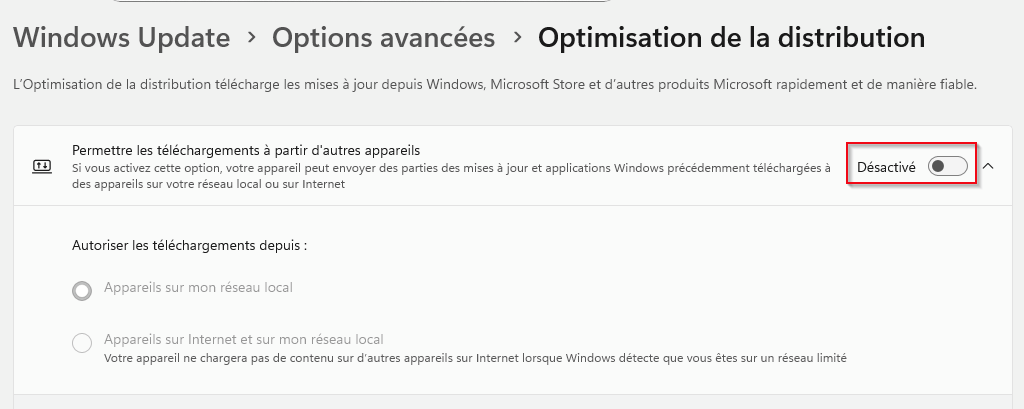
reg add "HKCU\Software\Classes\CLSID\{86ca1aa0-34aa-4e8b-a509-50c905bae2a2}\InprocServer32" /f /veIV: Disable Optimi Distrib (Save bug RAM)
V: Disable WinGet
In CMD with Administrator rights.
winget uninstall "Windows web experience Pack"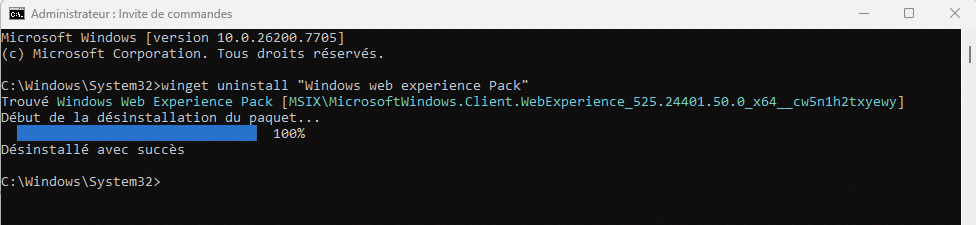
Or in PowerShell with Administrator rights.
Get-AppxPackage *WebExperience* | Remove-AppxPackageOr Disable via Group Policy (Pro/Enterprise)
This ensures Widgets do not return after updates.
- Press Windows Key + R (run), type
gpedit.msc, and press Enter - Navigate to:
Computer Configuration > Administrative Templates > Windows Components > Widgets(Configuration ordinateur > Modèles d'administration > Composants Windows > Widgets (ou Gadgets de bureau)) - Double-click Allow widgets, set it to Disabled, then click Apply and OK
If you wish to restore the widgets later, they can be reinstalled from the Microsoft Store 😉
VI: If folder WinSxS takes up too much space
In CMD with Administrator rights.
dism.exe /online /Cleanup-Image /StartComponentCleanupMore thorough, but irreversible, cleanup (Please be patient, this may take a while)
dism.exe /online /Cleanup-Image /StartComponentCleanup /ResetBaseVII: Find the largest files
WizTree (The Fastest Disk Space Analyzer): https://diskanalyzer.com/
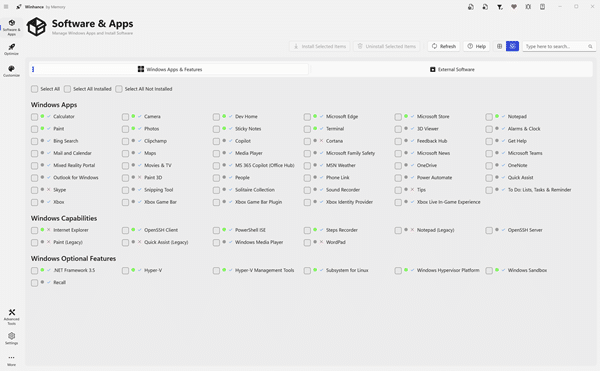
WinHance
…